An account belongs to an organization. Everyone on the team can see every request the team has made.
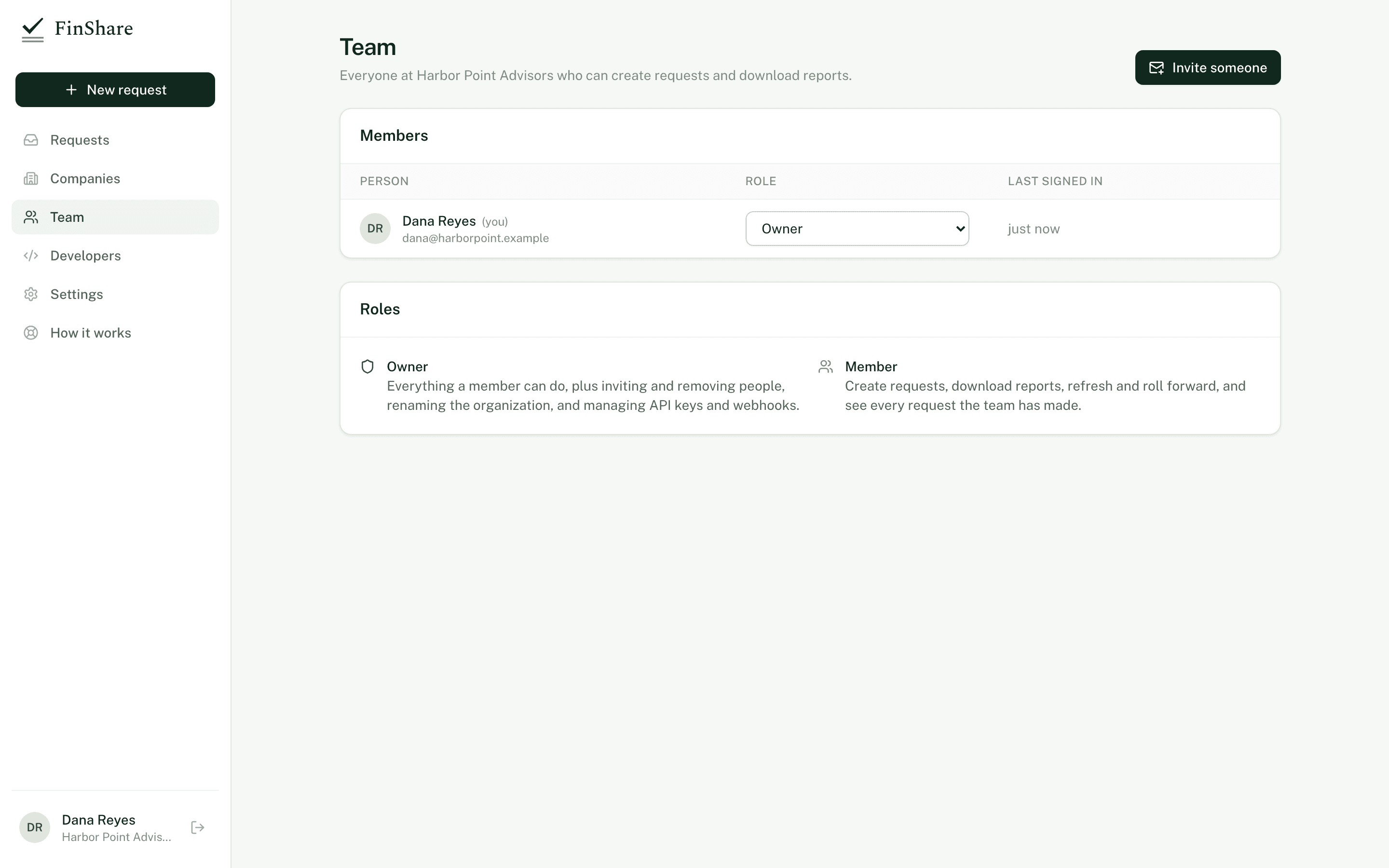
Team lists members, pending invitations and what each role can do.
Roles
| Owner | Member | |
|---|---|---|
| Create requests, download reports, refresh and roll forward | Yes | Yes |
| See every request the team has made | Yes | Yes |
| Save and delete team templates | Yes | Yes |
| Invite and remove people, change roles | Yes | No |
| Rename the organization | Yes | No |
| Create and revoke API keys, add and remove webhook endpoints | Yes | No |
The person who creates the account is an owner. An organization can have more than one owner.
Invite someone
- Go to Team and click Invite someone. Only owners see this button.
- Enter their email, and their name if you like. They can change it.
- Click Send invitation.
They get an email with a link to join. The link works once and expires in 7 days. Until they accept, the invitation shows under Pending invitations, where you can Resend or Cancel it.
Change a role
Owners can switch anyone between Owner and Member from the role dropdown in the Members table.
Remove someone
Click Remove next to their name and confirm. They're signed out and can't sign in again. Requests they created stay with the team.
To change the email address on someone's account, invite the new address and remove the old one.
Your organization's name
Settings › Organization holds the name owners see: "<name> is asking for reports from your QuickBooks." Use the name the business owner will recognize, such as your firm's name. Only owners can change it.
Your own settings
In Settings › You:
- Your name is shown to business owners as the person asking.
- Email me about my requests turns on emails when an owner approves or declines, when reports are ready, and when access ends early or needs attention. These cover requests you created.
Related
- Companies
- Authentication for API keys