Someone asked you to share reports from your QuickBooks through FinShare. Usually it's a buyer, a lender, an advisor or your accountant. This page explains what you're looking at and what each choice does. You don't need a FinShare account.
Before you start
- You need to be an admin of the QuickBooks Online company. If you're not, forward the email to whoever is, or ask the requester to send it to them.
- Use the same browser from start to finish. You'll connect QuickBooks and then approve; both steps have to happen in the browser you started in.
- The link expires. The date is at the bottom of the page. If it's expired, ask the person who sent it for a new one.
Step 1: Review the request
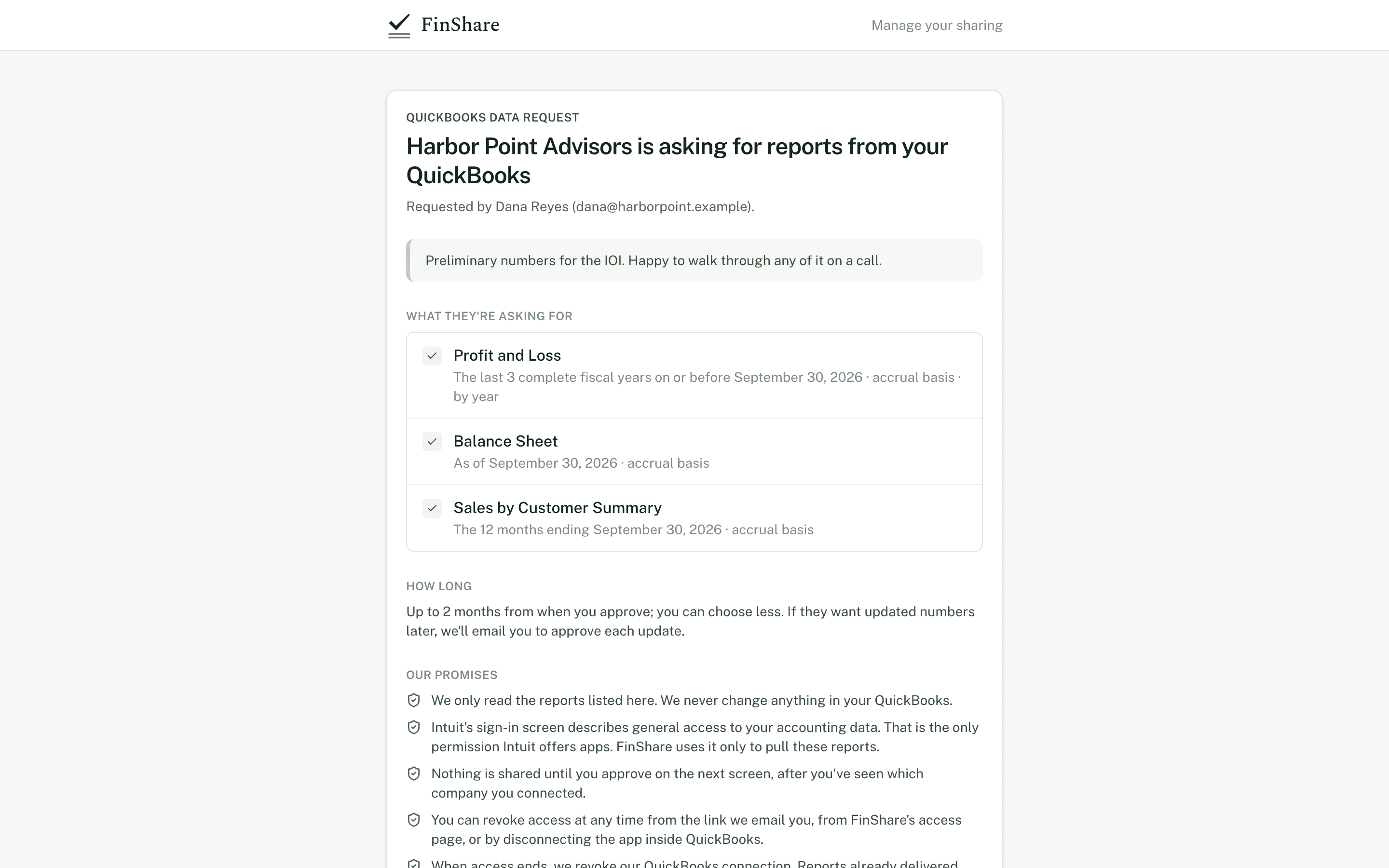
Read the list before you connect. Nothing is shared at this step.
Check three things.
Who is asking. The heading names the organization. Below it is the person who sent it, with their email. If you don't recognize them, don't connect. Contact them some other way first.
What they're asking for. One line per report, for example:
- Profit and Loss · The last 3 complete fiscal years on or before September 30, 2026 · accrual basis · by year
- Balance Sheet · As of September 30, 2026 · accrual basis
- General Ledger · The 12 months ending September 30, 2026 · accrual basis
FinShare will pull only these reports for only these dates. If the list is more than you're comfortable with, decline and ask for a narrower request.
How long. "Up to 3 months from when you approve; you can choose less." You'll get to pick a shorter time in step 2. This section also says how updates work: either they'll ask you each time, or they've asked to refresh without asking during that time.
If it all looks right, click Connect to QuickBooks. If not, click Decline request.
Step 2: Connect QuickBooks
You're sent to Intuit to sign in and choose the company.
Intuit's screen describes general access to your accounting data. That's the only permission Intuit offers apps; there's no read-only option to pick. FinShare's code only reads, and only the reports on the list.
Step 3: Confirm and approve
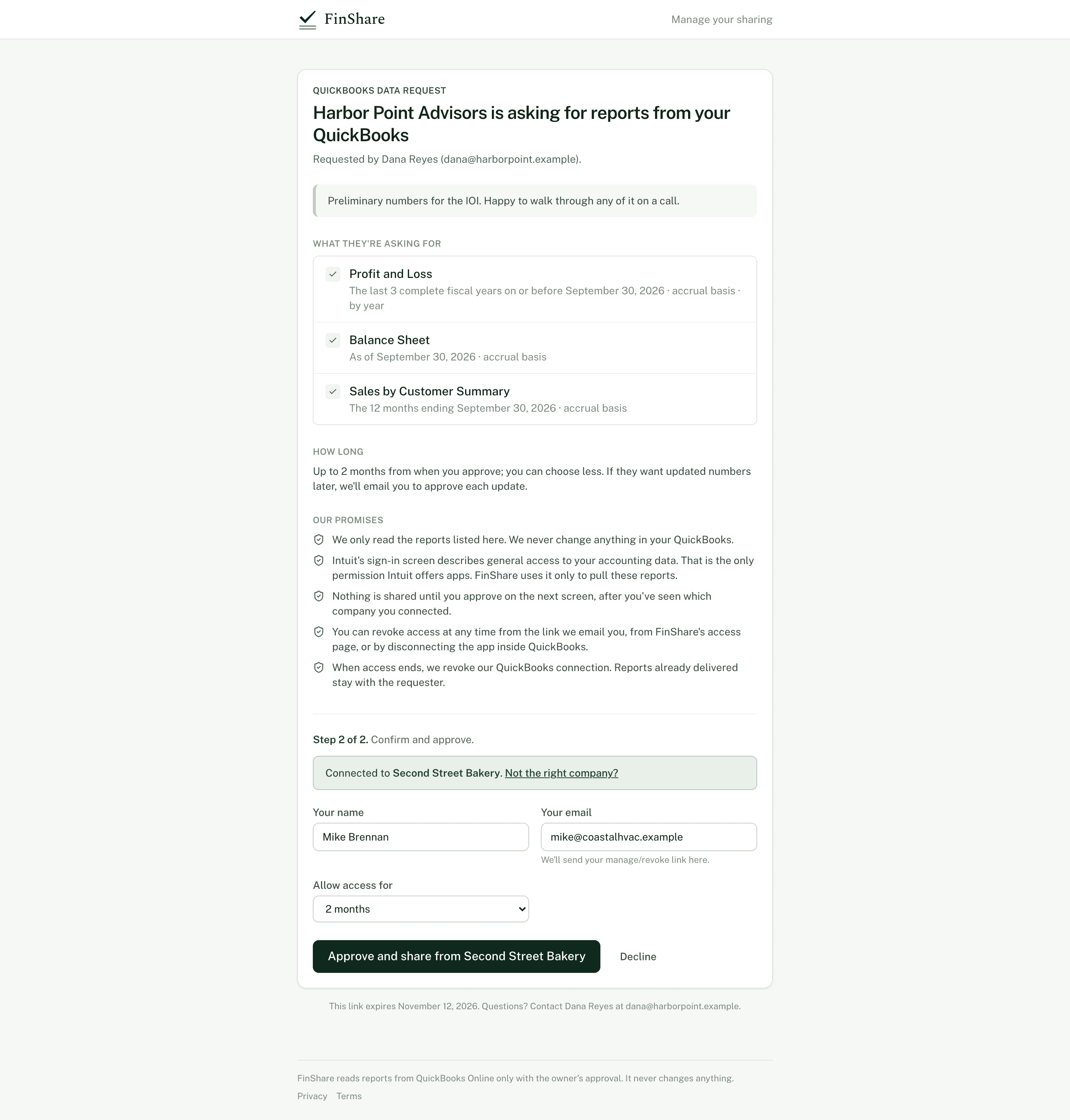
Check the company name, then choose how long.
Back on FinShare:
- Check the company. The notice says "Connected to <Company name>". If you have more than one QuickBooks company and picked the wrong one, click Not the right company? and connect again.
- Enter your name and email. FinShare sends your manage link here, and any later requests for updated numbers.
- Choose how long. Allow access for starts at what they asked for. Pick a shorter time if you prefer. When it ends, FinShare disconnects from your QuickBooks on its own.
- Choose how updates work (only shown if they asked for standing approval). Let them refresh during this time means they can pull updated copies of the same reports until access ends without asking you. Ask me each time means every update comes to you for approval first.
- Click Approve and share from <Company name>.
If you change your mind here, click Decline. Nothing is shared, and if you connected QuickBooks along the way, FinShare disconnects it.
What happens next
FinShare pulls the reports and delivers them to the requester, usually within a few minutes. You'll get an email with the subject "You shared QuickBooks reports with <organization>". It has a link to a page showing exactly what was delivered and a button to revoke access. Keep that email.
When they ask for updated numbers
If you chose Ask me each time, you'll get an email when they want a refresh or want to roll forward to a later month. It lists exactly which reports and dates. Open the link and click Approve or Decline. You won't need to sign in to QuickBooks again.
An update can only use the reports and basis you already approved, with dates that move forward. If they want something different, they have to send a new request, which you'd review from scratch.
Common questions
Can I approve for only some of the reports? No. You approve or decline the request as a whole. If you want to share fewer reports, decline and tell the requester what you'd approve.
Can I see the reports myself? FinShare delivers them to the requester. Your manage page lists every report delivered, with dates and times. You can run the same reports in QuickBooks at any time.
What if I'm not the QuickBooks admin? Forward the email to whoever is. They should approve.